Can Excel and Google Sheets Make QR Codes?
Neither has a built-in “QR code” button, but both can show an image from a web address with the IMAGE function. Combine that with a free QR code image service and you can turn a whole column of links, product codes or names into QR codes with a single formula you drag down.
This is ideal for:
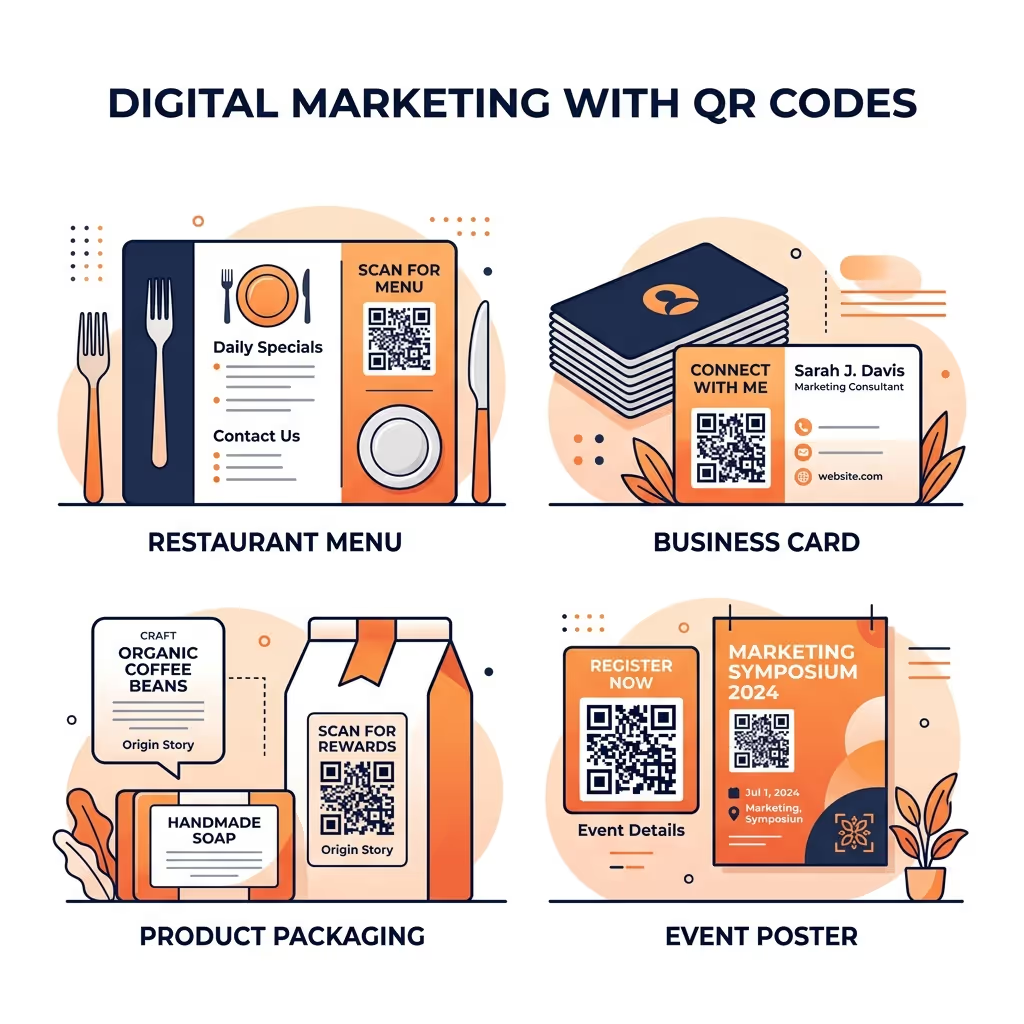
- Inventory labels and asset tags
- Event badges and tickets
- Product lists and price sheets
- Classroom and library materials
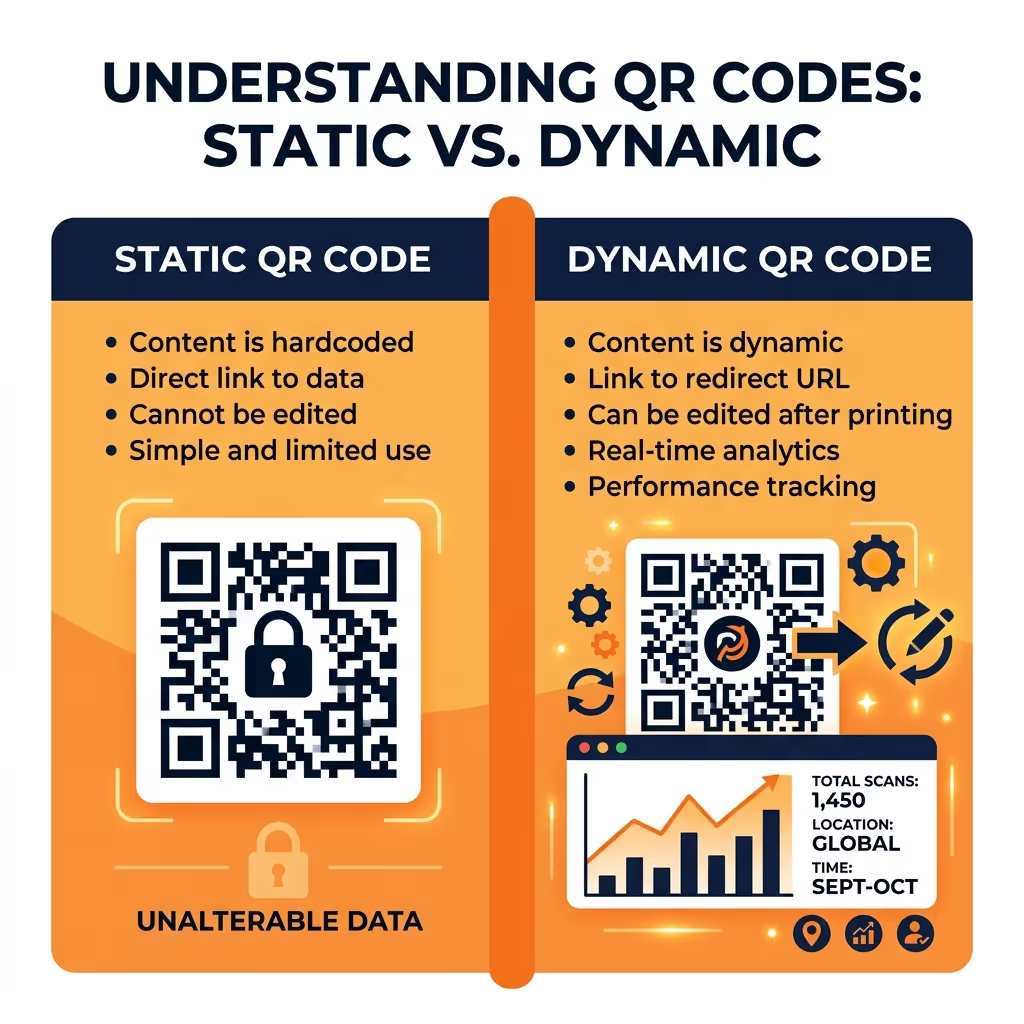
The codes you get this way are static QR codes: the data is inside the code, so they never expire.
Method 1: Google Sheets
- Put your links or text in column A, starting at A2.
- In B2, paste this formula:
=IMAGE("https://api.qrserver.com/v1/create-qr-code/?size=300x300&data=" & ENCODEURL(A2))- Press Enter. A QR code appears in the cell.
- Drag the fill handle (the small square at the bottom-right of B2) down the column.
- Make rows taller and columns wider so the codes are big enough to scan.
ENCODEURL makes sure characters like &, ? and spaces in your data don’t break the link. If your Google Sheets shows function names in another language and the formula gives an error, open File → Settings and turn on the option to always use English function names.
Method 2: Excel
Excel’s IMAGE function works in Microsoft 365 (Windows and Mac), Excel 2024 and the Excel apps for iPhone and Android. Excel 2021 and older don’t have it.
Excel for Windows: enter this in B2 and drag it down, just like in Sheets:
=IMAGE("https://api.qrserver.com/v1/create-qr-code/?size=300x300&data=" & ENCODEURL(A2))Excel for Mac or Excel in a browser: ENCODEURL only exists in Excel for Windows, so leave it out:
=IMAGE("https://api.qrserver.com/v1/create-qr-code/?size=300x300&data=" & A2)This works for plain links like https://yourshop.com/product-12. If your cells contain spaces, & or #, those characters can break the code. Use Google Sheets (Method 1) instead, where ENCODEURL works on any computer.
A few things to know:
#NAME?error: your Excel doesn’t haveIMAGE(Excel 2021 or older) orENCODEURL(Mac or browser). Use the matching formula above, or Google Sheets.#CONNECT!or#BLOCKED!error: Excel couldn’t load the image. Check your internet connection, and allow linked images if Excel asks.- Very long links:
IMAGEonly accepts web addresses up to 255 characters, so very long URLs in your cells can fail. Shorten them first. - Excel in another language: function names are translated in localized versions of Excel (for example
IMAGENandURLCODIFin Spanish). Excel suggests the right name as you start typing.
How to Print or Export the QR Codes
The formula loads each image from the internet when the file opens. To make the codes permanent in your file:
- Google Sheets: go to File → Download → PDF. The QR codes are saved in the PDF, ready to print.
- Excel: select the cells, Copy, then Paste → Picture to turn them into fixed images you can move, print or export.
Getting Better Quality for Print
The formula above creates 300 × 300 pixel PNGs, which is fine for screens and small labels. For larger prints:
- Increase the size in the link, for example
size=1000x1000. - For logos, brand colors or rounded styles, or a single code for a poster, use the EverQR generator and download an SVG. SVGs stay perfectly sharp at any size.
Privacy: What Gets Sent Where
With the spreadsheet method, each value in your column is sent to the QR image service to draw the code. That’s fine for public links and product numbers, but don’t use it for passwords, personal data or private URLs.
If your data is sensitive, generate codes one at a time with a tool that runs entirely in your browser. The EverQR generator creates codes locally on your device and never uploads what you type.
Want to Track Scans or Change Links Later?
Spreadsheet QR codes are static: great for permanence, but you can’t edit them or see who scanned. If you’re printing hundreds of labels that might need updating, consider dynamic QR codes. EverQR Pro is $5.99/month with a 30-day free trial, no credit card required.
FAQ
How do I make a QR code in Excel without add-ins?
Use the IMAGE function with a QR image service, as shown above. It works in Microsoft 365 and Excel 2024 with no add-ins or macros.
Can I create QR codes in bulk for free?
Yes. The spreadsheet formula turns every row into a QR code at no cost. Drag it down for hundreds of rows.
Do QR codes made in Excel or Google Sheets expire?
No. They’re static codes: the data is encoded in the image itself. Once you’ve saved the image, it works forever.
Why are my QR codes blurry when printed?
The image is too small for the print size. Increase the size value in the formula, or download an SVG from a QR generator for large prints.